iBeesoft Disk Partition Wizard License Key

The software
Overview
iBeesoft Disk Partition Wizard Overview
Official Website: www.ibeesoft.com
Supported Systems: Windows 11, 10, 8.1/8, 7
iBeesoft Disk Partition Wizard comes with a comprehensive set of tools to manage partitions, clone disks, convert disk formats, recover lost partitions, create bootable media, and perform various disk maintenance tasks.
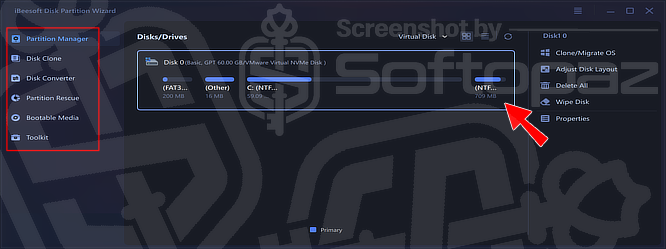
Its interface organises these functions into six main sections: Partition Manager, Disk Clone, Disk Converter, Partition Rescue, Bootable Media, and Toolkit.
1. Partition Manager
As you can see in the screenshot below, the Partition Manager section provides the main tools for managing disk partitions.
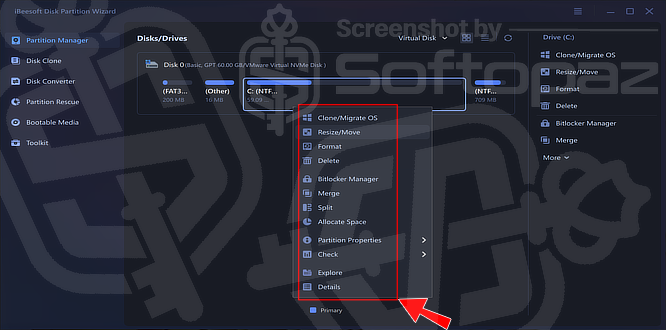
You can select a partition and perform common operations here:
- Clone/Migrate OS – Clone or migrate the Windows operating system to another disk.
- Resize/Move – Change the size or position of a partition.
- Format – Format a selected partition.
- Delete -Remove a partition and make its space available for other uses.
- BitLocker Manager – Manage BitLocker-related operations for supported partitions.
- Merge – Combine partitions to manage their space as a larger partition.
- Split – Divide a partition into separate partitions.
- Allocate Space – Assign available disk space to another partition.
- Partition Properties – View information and properties related to a partition.
- Check – Check a partition for disk or file-system issues.
- Explore – Browse files and folders stored on a partition.
- Details – View additional information about the selected partition.
2. Disk Clone
The Disk Clone section provides different cloning options for moving an operating system or copying data between disks and partitions.
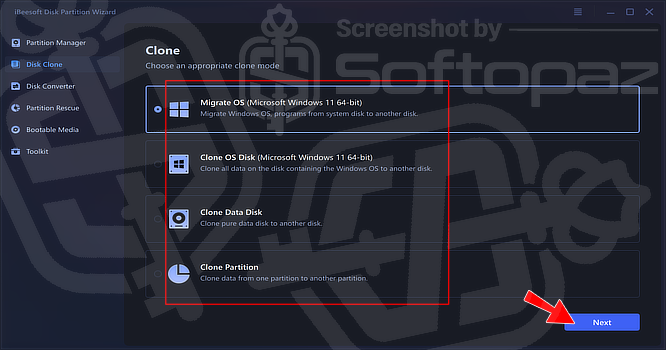
It gives you separate modes depending on what you want to clone:
- Migrate OS – Move Windows and its programs from the current system disk to another disk.
- Clone OS Disk – Clone the disk containing Windows and its data to another disk.
- Clone Data Disk – Copy the contents of a data disk to another disk.
- Clone Partition – Clone the data from one partition to another partition.
The Disk Clone section is useful when upgrading to a larger or faster drive, moving Windows to another disk, or creating a copy of existing disk data.
3. Disk Converter
The Disk Converter section contains tools for changing disk and file-system configurations. It supports several conversion options for different disk layouts and file systems.
- MBR → GPT – Convert an MBR disk to GPT.
- GPT → MBR – Convert a GPT disk to MBR.
- Dynamic → Basic – Convert a dynamic disk to a basic disk.
- Basic → Dynamic – Convert a basic disk to a dynamic disk.
- FAT → NTFS – Convert a FAT file system to NTFS.
- NTFS → FAT – Convert NTFS to FAT.
- FAT → exFAT – Convert FAT to exFAT.
These options help users change disk partition styles or file systems when their storage setup requires a different configuration.
Other Tools
iBeesoft Disk Partition Wizard also includes many other useful tools for managing, recovering, and maintaining disks.
Its Partition Rescue section helps recover lost partitions and repair RAW partitions, while Bootable Media lets you create bootable media from a Windows ISO.
The Toolkit provides additional utilities for data migration, bad sector scanning, MBR rebuilding, 4K alignment, write protection, BitLocker recovery, and Windows ISO downloads.
Can you run iBeesoft Disk Partition Wizard on your PC?
Yes, if your PC runs Windows 12, 11, 10, 8, 7, Vista, XP, or Windows Server, has at least 200 MB of free disk space, a 500 MHz CPU, and 1 GB of RAM. It supports NTFS, exFAT, FAT32/16/12, EXT4/3/2, ReFS, and more, and is available in 16+ languages.
Key Features
- Manage disk partitions by resizing, moving, formatting, deleting, merging, and splitting them.
- Clone entire disks, operating system drives, or individual partitions to another drive.
- Migrate Windows and installed programs from one disk to another.
- Convert disks between MBR and GPT partition styles.
- Convert between Basic and Dynamic disk types.
- Convert file systems between FAT, NTFS, and exFAT.
- Recover lost or accidentally deleted partitions.
- Repair partitions that have become RAW due to disk or file-system problems.
- Create bootable media from a Windows ISO for system and disk operations.
- Scan disks for bad sectors to check their condition.
- Rebuild the MBR to help fix certain Windows boot problems.
- Enable or disable write protection on supported storage devices.
- Perform 4K alignment to help improve disk read and write performance.
- Retrieve BitLocker recovery keys for encrypted partitions.
- Migrate applications and data from the C: drive to another disk to free up space.
- Download Windows ISO files for creating installation or bootable media.
Steps to
Get Full FREE (Giveaway)
Giveaway License Coverage
| License Type | 1 Year License |
| Supported OS | Windows 11, 10, 8.1/8, 7 |
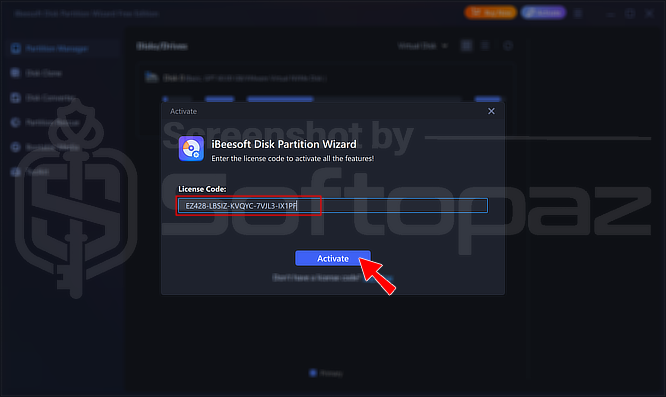
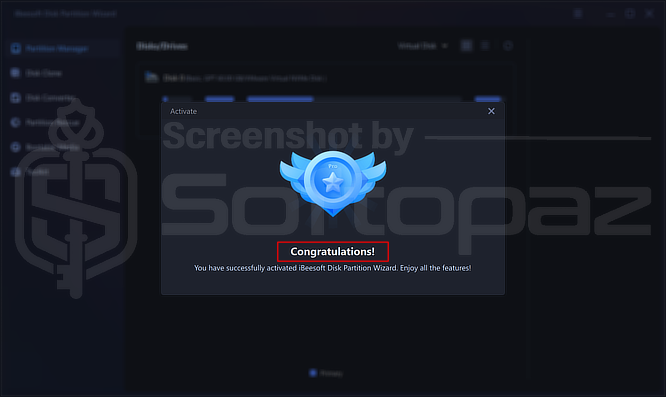
iBeesoft Disk Partition Wizard Giveaway License Key & FREE Activation Steps
https://download.ibeesoft.com/iBeesoft-Disk-Partition-Wizard.exeCheck LOWEST Price to get genuine license code with maximum discount today!
giveaway vs paid
Full License FAQs
What is iBeesoft Disk Partition Wizard Giveaway License?
iBeesoft Disk Partition Wizard Giveaway License is a promotional type of license offered through the official site. It allows you to activate the software’s full features for free during the giveaway period. However, a giveaway license may come with certain limitations and restrictions.
This is the