FocuSee – Screen Recorder License Key

The software
Overview
iMobie FocuSee (Windows) Overview
Official Website: https://focusee.imobie.com
Supported Systems: Windows 10, 11
FocuSee Screen Recorder helps you create polished tutorials, demos, presentations, marketing videos, and other screen-based content with minimal manual effort.
Its AI-powered features simplify recording and editing with tools such as auto-zoom, AI subtitles, background removal, audio enhancement, and more.
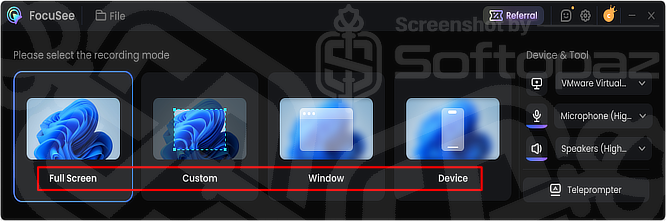
FocuSee provides four recording modes:
Screen Recording Modes
- Full Screen: Record everything displayed on your screen.
- Custom Area: Select a specific area of the screen to record.
- Selected Window: Record a particular application or window.
- Connected Device: Connect an iPhone or Android smartphone and record its screen from your PC.
It supports screen, webcam, microphone, and system-audio recording, making it suitable for different types of video content.
Who Is FocuSee Suitable For?
FocuSee is suitable for creating software tutorials, product demonstrations, online courses, presentations, marketing videos, and how-to content where clear screen actions and polished visuals are needed.
Screen Recording Tools & AI Features
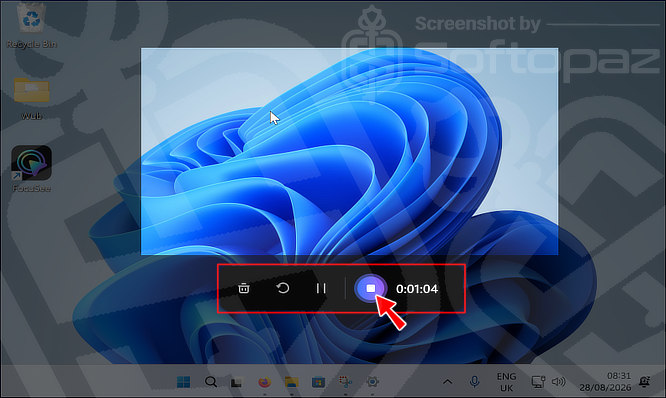
- Auto Zoom & Cursor: Automatically follows clicks and typing areas with smooth zoom effects while offering customizable cursor styles and animations.
- Background Removal: Removes, blurs, or replaces your webcam background without requiring a green screen.
- Annotation: Provides text, shapes, arrows, callouts, spotlights, and blur tools for explaining content and hiding sensitive information.
- Add Watermark: Lets you add a custom watermark to your videos.
- AI Screen Recorder: Combines screen recording with AI-assisted editing and enhancement tools for faster video creation.
- Audio Enhancement: Improves voice clarity and reduces unwanted background noise with AI-powered audio tools.
- AI Subtitle: Automatically generates subtitles from speech and supports more than 50 languages on the current product page.
- AI Virtual Avatar: Lets you create videos with virtual presenters instead of appearing on camera.
- Filler & Silence Cut: Detects pauses and filler words such as “um” and “ah” and removes them automatically.
- Camera Layout: Provides dynamic layouts for combining screen and webcam footage.
- Teleprompter: Displays your script while recording, helping you follow your prepared content.
- 3D Motion: Adds tilt and perspective effects that follow cursor movement for a more cinematic presentation.
Built-in Video Editor
FocuSee comes with a built-in video editor, allowing you to edit recordings without using separate video-editing software.
After finishing the recording, FocuSee automatically opens the editing interface.
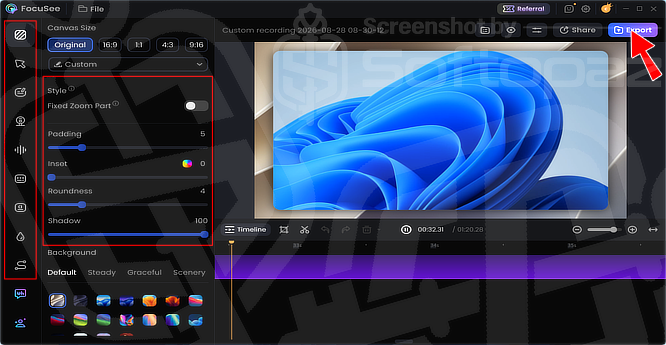
From here, you can trim and split clips, crop videos, adjust playback speed, customise zoom effects, change the canvas size and background, and fine-tune cursor and camera settings.
The editor also supports annotations, spotlight effects, subtitles, background music, audio controls, watermarks, camera layouts, and visual styling such as padding, rounded corners, shadows, and background blur.
You can also import existing videos into FocuSee for editing.
Video Export
FocuSee supports video export in up to 4K resolution and 60 FPS on paid plans. It also provides unlimited video creation and recording duration.
Key Features
- Record full screen, selected area, selected window, or from a connected iOS/Android device
- Automatically zoom in on clicks and important screen actions
- Generate subtitles automatically from recorded speech
- Create videos with AI-powered virtual avatars
- Remove, blur, or replace webcam backgrounds without a green screen
- Automatically remove filler words and silent parts from recordings
- Reduce background noise and improve voice clarity
- Add text, arrows, shapes, highlights, spotlights, and blur effects
- Combine screen recordings and webcam footage with different camera layouts
- Display a script on screen while recording with the built-in teleprompter
- Add dynamic 3D motion effects that follow cursor movements
- Add custom watermarks to your recorded videos
- Edit recordings with the built-in video editor
- Import existing videos and edit them directly in FocuSee
- Resize videos for different aspect ratios, including 16:9, 1:1, 4:3, and 9:16
- Export videos in up to 4K resolution and 60 FPS
To get rid of giveaway terms
Buy 30% OFF Now
BUY Genuine FocuSee Screen Recorder License Key with Now!
Purchase a genuine license key for FocuSee Screen Recorder via our exclusive link on the official order page to get the lowest price for the paid version. Enjoy free updates to new versions and free 24/7/365 customer support from iMobie.
FocuSee (Windows/Mac) Coupon Codes
Steps to
Get Full FREE (Giveaway)
Giveaway License Coverage
| License Type | 6 Months License |
| Supported OS | Windows 11, 10 |
Giveaway License Key & FREE Activation Steps
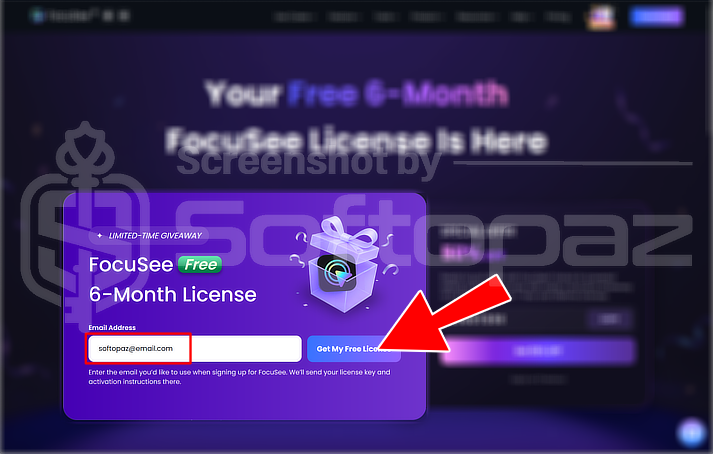
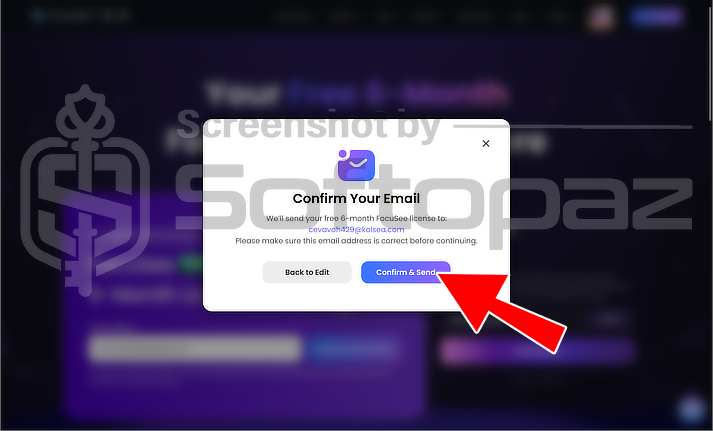
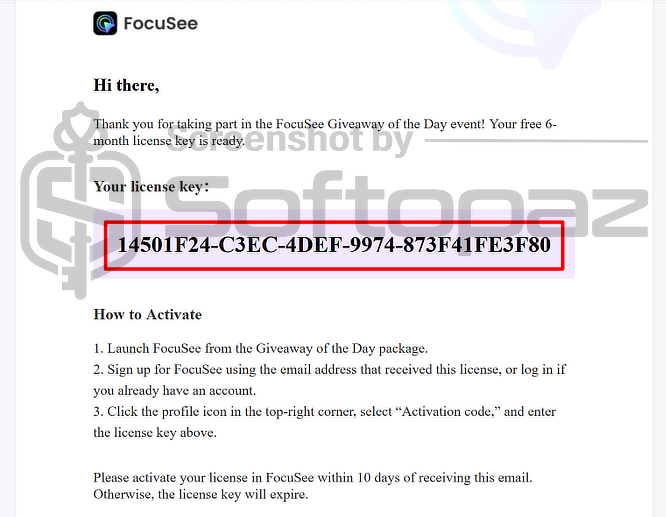
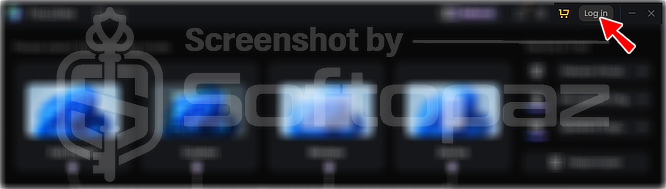
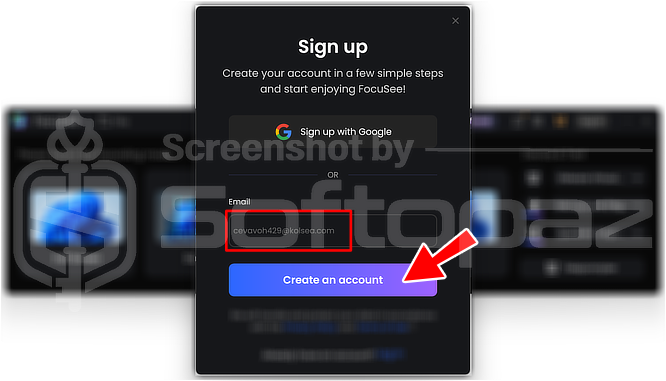
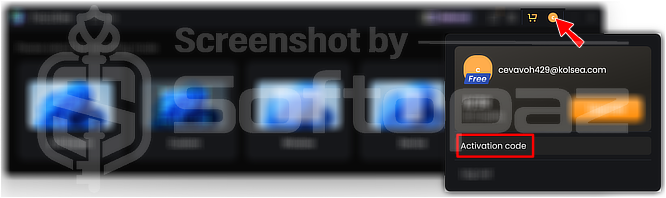
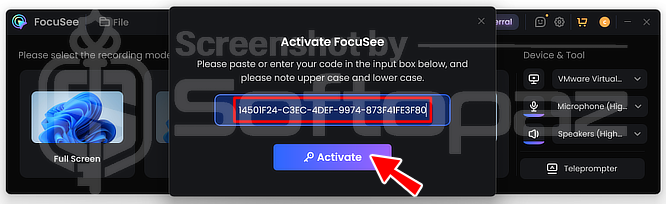
Enter your email and click the “Get My Free License” button. Then click on “Confirm & Send”. The free activation code will be sent to your email within a couple of minutes.
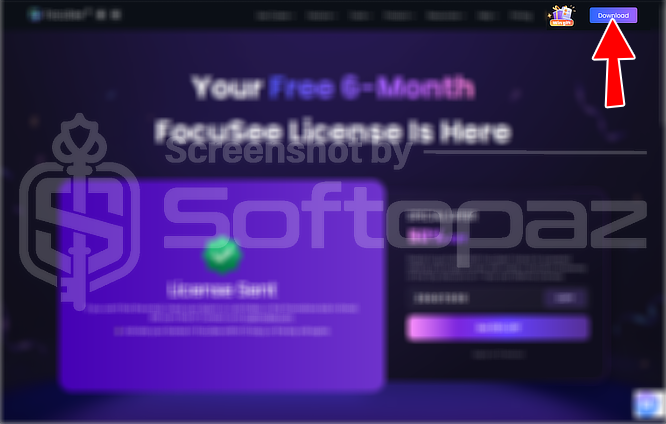
Click on the “Download again” button if the download doesn’t start automatically.
Check LOWEST Price to get genuine license code with maximum discount today!
giveaway vs paid
Full License FAQs
What is FocuSee Screen Recorder Giveaway License?
FocuSee Screen Recorder Giveaway License is a special promotional license that lets you activate full screen recorder features and tools for free, commonly for 6 months. However, it may come with restrictions compared to a paid license, such as limited updates, support, or access to certain features.
This is the